

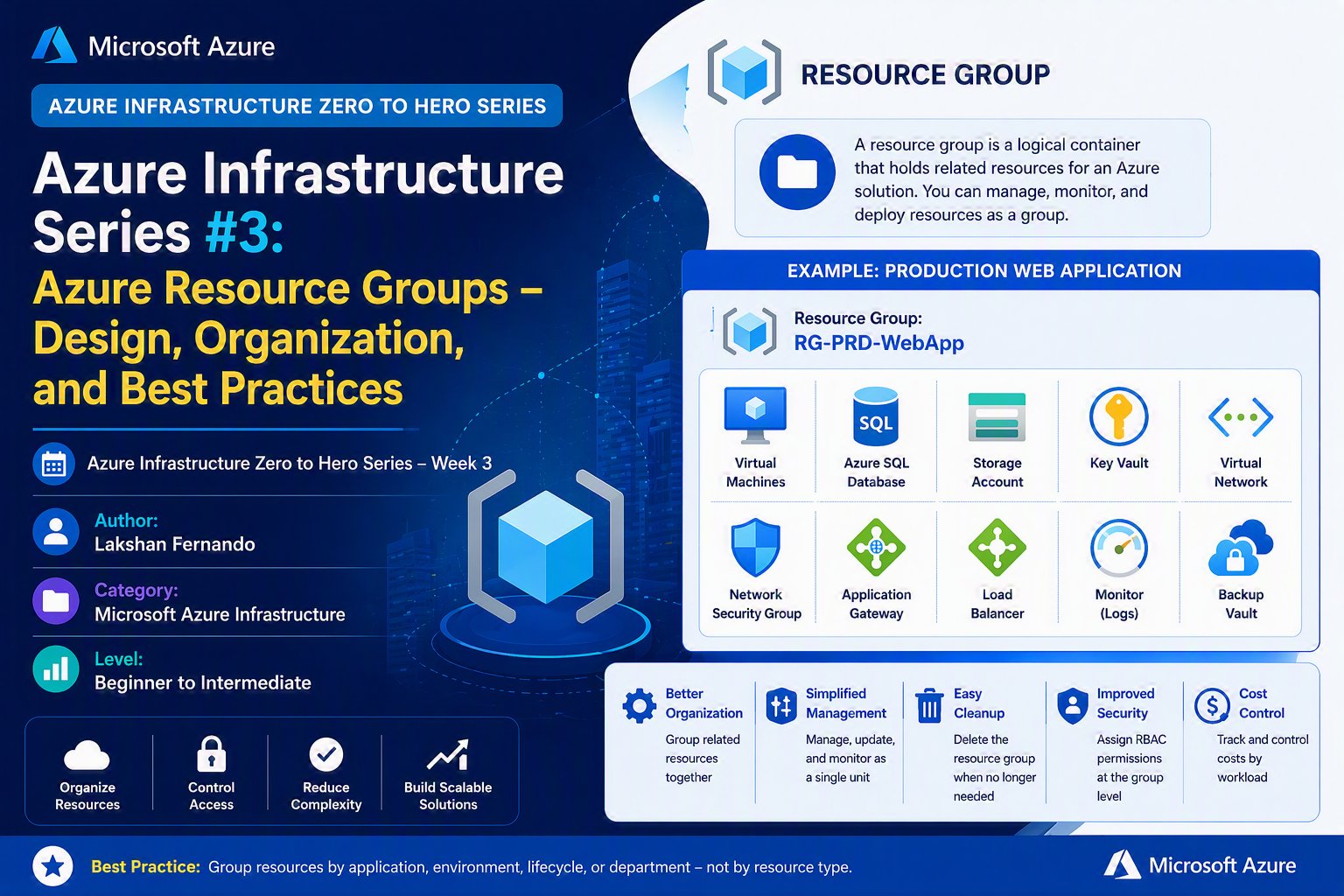
Azure Infrastructure Zero to Hero Series – Week 3
Author: Lakshan Fernando
Category: Microsoft Azure Infrastructure
Level: Beginner to Intermediate
Azure Resource Groups: Design, Organization, and Best Practices
When organizations first begin their Microsoft Azure journey, one of the most common mistakes is creating resources without a proper organizational strategy.
It usually starts innocently.
A virtual machine is deployed for testing.
A storage account is created for backups.
A virtual network is added later.
An Azure SQL Database is deployed by another engineer.
After several months, the Azure subscription contains hundreds of resources with inconsistent names, different owners, and no clear structure.
Managing costs becomes difficult.
Applying security policies becomes complicated.
Deleting unused resources becomes risky.
This is exactly why Azure Resource Groups exist.
Resource groups are not simply folders. They are the logical foundation for organizing, securing, managing, monitoring, and automating Azure infrastructure.
In this article, we'll explore Resource Groups in depth, understand how they work, discuss real-world design strategies, and learn best practices used by enterprise organizations.
What is an Azure Resource Group?
An Azure Resource Group (RG) is a logical container that holds related Azure resources.
These resources may include:
- Virtual Machines
- Virtual Networks
- Network Security Groups
- Storage Accounts
- Azure SQL Databases
- Load Balancers
- Azure Kubernetes Service (AKS)
- Azure App Services
- Key Vaults
- Recovery Services Vaults
- Azure Monitor resources
- Public IP Addresses
- Managed Disks
Think of a resource group as a project container.
Everything related to a particular workload can be managed together.

Instead of searching an entire subscription, administrators simply open the Resource Group.
Everything is organized.
Why Microsoft Introduced Resource Groups
Azure subscriptions can contain thousands of resources.
Without Resource Groups:
- Administration becomes difficult.
- Permissions become complicated.
- Automation becomes inconsistent.
- Cost reporting becomes confusing.
- Disaster recovery planning becomes harder.
Resource groups solve these problems by providing logical boundaries.
Resource Groups are NOT Folders
One of the biggest misconceptions among beginners is treating resource groups like folders.
They are much more powerful.
Resource groups provide the following:
- Lifecycle management
- Access control
- Policy assignment
- Cost tracking
- Monitoring scope
- Automation scope
- RBAC scope
- Resource deployment scope
A resource group is actually the management boundary for Azure resources.
Characteristics of Resource Groups
Every resource group has several important characteristics.
1. Every Resource Must Belong to One Resource Group
There are no exceptions.
Every Azure resource belongs to exactly one resource group.
A resource cannot exist without a resource group.
2. One Resource Cannot Belong to Multiple Resource Groups
Unlike folders in some operating systems, Azure resources cannot exist in two resource groups simultaneously.
3. Resource Groups Can Span Multiple Regions
This surprises many Azure beginners.
Although the Resource Group itself has a location, resources inside it may exist in different Azure regions.
4. Resource Group Metadata Has a Region
When creating a resource group, Azure asks for a location.
This location stores only the Resource Group metadata.
It does NOT determine where the resources must reside.
Designing Resource Groups
There are several approaches.
The best design depends on your organization.
Let's examine each strategy.
Strategy 1 – Group by Application (Recommended)
This is Microsoft's recommended design.

Most enterprise environments follow this model.
Strategy 2 – Group by Environment

Useful when environments are isolated.
Strategy 3 – Group by Department

Strategy 4 – Group by Lifecycle
Resources that share the same lifecycle belong together.

All are deleted together.
Perfect.
Do NOT separate tightly coupled resources unnecessarily.
Poor Design Example

Enterprise Resource Group Example

This structure is common in large enterprises.
Naming Convention Best Practices

Consistency is more important than the exact format.
Resource Locks
One of the most useful resource group features is resource locks.
There are two types.
CanNotDelete
Prevents accidental deletion.
Users can still modify resources.
ReadOnly
Prevents
- Delete
- Modify
Only reading is allowed.
Ideal for highly sensitive shared infrastructure.
Azure RBAC at Resource Group Level
Instead of assigning permissions individually to every VM or storage account, Azure allows role-based access control (RBAC) at the resource group level.

This approach reduces administrative overhead and simplifies permission management while following the principle of least privilege.
Azure Policy at Resource Group Level
Azure Policy helps enforce organizational standards.
Policies can be assigned directly to a resource group.
Examples include:
- Only allow approved Azure regions.
- Restrict VM sizes.
- Require resource tags.
- Enforce HTTPS-only access.
- Require managed disks.
- Deny public IP creation.
- Restrict SKUs for storage accounts.
Applying policies at the Resource Group level ensures every new resource complies automatically.
Resource Tags
Tags add metadata to Azure resources and make searching, reporting, automation, and cost allocation much easier.
Common tags include:
|
Tag |
Example |
|
Environment |
Production |
|
Owner |
IT Infrastructure |
|
Department |
Finance |
|
CostCenter |
CC1001 |
|
Project |
ERP |
|
Business Unit |
Sales |
|
Criticality |
High |
Organizations often enforce mandatory tags through Azure Policy to maintain governance and improve cost reporting.
Cost Management
Azure Cost Management can group spending by resource group.
Example:
|
Resource Group |
Monthly Cost |
|
RG-ERP |
$1,450 |
|
RG-HR |
$620 |
|
RG-Marketing |
$310 |
|
RG-Backup |
$180 |
This visibility allows finance teams and technical teams to identify expensive workloads, allocate costs to departments, and optimize spending.
Infrastructure as Code (IaC)
Infrastructure as code tools typically deploy complete solutions into a resource group.
Examples include:
- Azure Resource Manager (ARM) templates
- Bicep
- Terraform
A deployment may create:
- Virtual Network
- Virtual Machines
- Storage Account
- Key Vault
- Network Security Group
- Azure Monitor resources
If needed, the entire deployment can be removed by deleting the resource group—provided no shared resources are included.
Monitoring Resource Groups
Azure Monitor allows administrators to monitor all resources within a resource group.
You can view:
- Activity Logs
- Metrics
- Alerts
- Diagnostic settings
- Health information
This centralized view simplifies operations and troubleshooting for application teams.
Moving Resources Between Resource Groups
Azure supports moving many resource types between resource groups within the same subscription.
Typical scenarios include the following:
- Reorganizing environments.
- Separating development and production.
- Aligning with a new governance model.
However, not every Azure resource supports moving, and some dependencies or service limitations may prevent it. Always verify compatibility before planning a move.
Common Mistakes
Avoid these common pitfalls:
- Creating one resource group for the entire subscription.
- Naming resource groups inconsistently.
- Mixing production and development resources.
- Storing unrelated applications in the same resource group.
- Forgetting to apply tags.
- Not using resource locks for production workloads.
- Assigning permissions directly to individual resources instead of to the resource group.
- Deleting a resource group without understanding that all contained resources are deleted.
Enterprise Best Practices
Follow these practices to build a manageable Azure environment:
- Organize resource groups by application or workload whenever possible.
- Use a consistent naming standard across the organization.
- Separate production, UAT, test, and development environments.
- Apply RBAC at the resource group level rather than individual resources.
- Enforce mandatory tags with Azure Policy.
- Protect critical resource groups using resource locks.
- Keep resources with the same lifecycle together.
- Avoid placing shared infrastructure in application-specific resource groups.
- Review Resource Groups periodically to remove unused resources and improve organization.
- Standardize deployments using Infrastructure as Code.
Summary
Azure resource groups are far more than organizational containers; they are the primary management boundary for Azure resources. A well-designed resource group strategy simplifies administration, strengthens security, improves governance, enables accurate cost tracking, and supports automation at scale.
By planning your resource group structure early, adopting consistent naming conventions, and applying RBAC, Azure Policy, resource locks, and tagging standards, you create an Azure environment that remains manageable as it grows from a handful of resources to thousands across multiple subscriptions.
Whether you are managing a small development environment or a large enterprise landing zone, a strong resource group design is one of the most important building blocks for long-term success on Microsoft Azure.
Key Takeaways
- Every Azure resource belongs to exactly one resource group.
- Resource Groups are management boundaries, not simple folders.
- Organize resource groups by workload, application, or lifecycle rather than by resource type.
- Apply RBAC, Azure Policy, and Resource Locks at the Resource Group level to simplify governance.
- Use consistent naming conventions and mandatory tags to improve operational efficiency.
- Group resources with the same lifecycle to make deployment, maintenance, and decommissioning easier.
- A well-planned resource group strategy provides a scalable foundation for enterprise Azure environments.




No comments yet. Be the first to share your thoughts!