

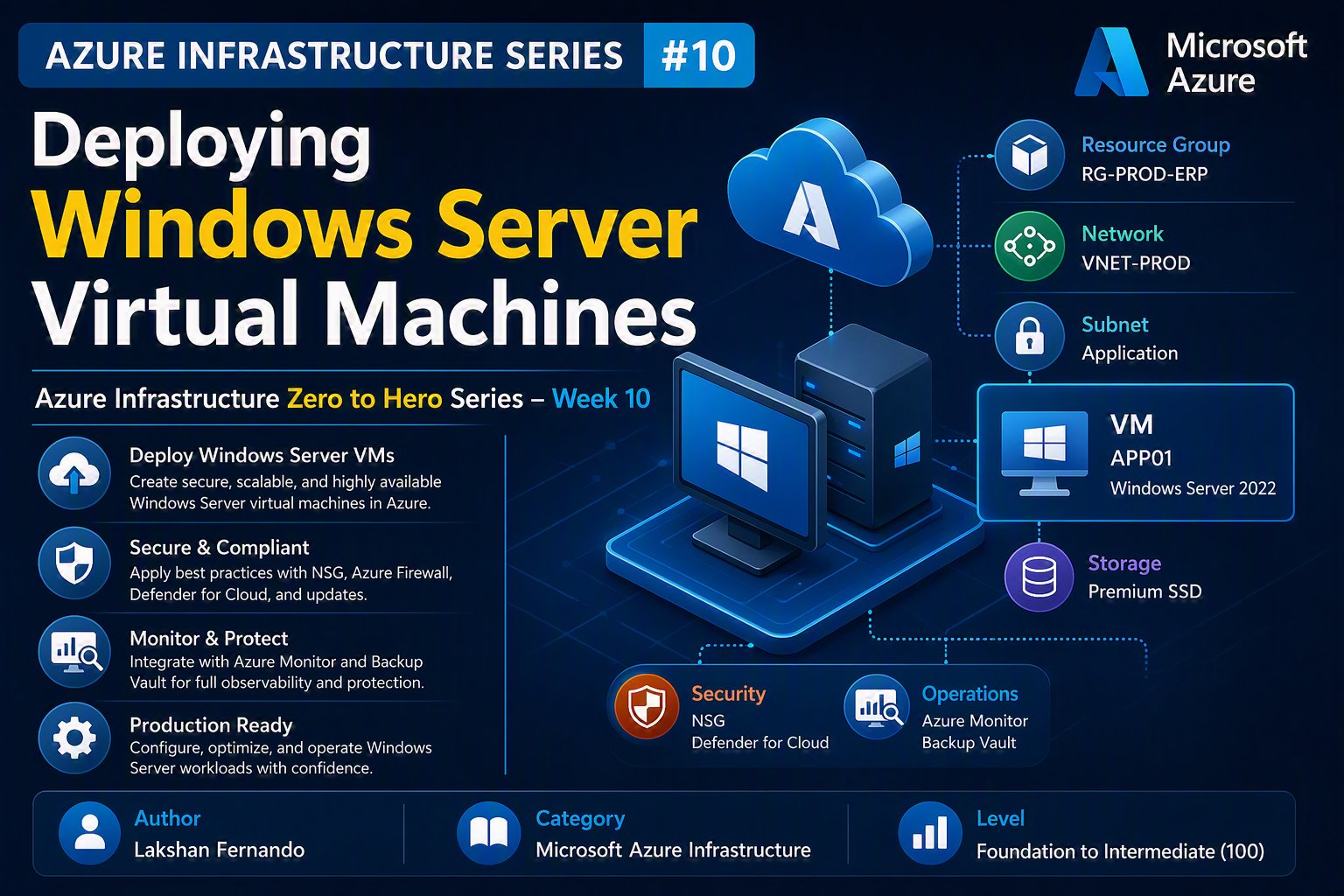
Azure Infrastructure Zero to Hero Series – Week 10
Author: Lakshan Fernando
Category: Microsoft Azure Infrastructure
Level: Foundation to Intermediate (100)
Introduction
Virtual Machines (VMs) are one of the most widely used Azure Infrastructure services. They provide Infrastructure as a Service (IaaS), allowing organizations to deploy Windows Server workloads in Microsoft Azure without managing physical hardware.
Although Azure provides many Platform as a Service (PaaS) offerings, Windows Server Virtual Machines remain essential for enterprise workloads such as:
- Active Directory Domain Services (AD DS)
- File Servers
- Application Servers
- SQL Server workloads
- Remote Desktop Services (RDS)
- Legacy enterprise applications
- Lift-and-shift migrations from on-premises environments
- Disaster Recovery solutions
Deploying a Windows Server VM in Azure is not simply creating a server and installing an operating system. A production-ready deployment requires proper planning around:
- Virtual machine sizing
- Networking
- Storage architecture
- Security controls
- Availability
- Identity integration
- Backup and monitoring
- Governance requirements
This article explains the complete process of deploying Windows Server Virtual Machines in Azure and covers the key design decisions required for enterprise environments.
Understanding Azure Virtual Machines
Azure Virtual Machines are compute resources that provide virtualized servers running on Microsoft's global infrastructure.
A VM consists of several core components:

Each VM includes:
Compute
Defines the processing capability:
- Number of vCPUs
- Memory allocation
- GPU availability
- Temporary disk
Storage
Azure VM storage consists of:
- OS Disk
- Data Disks
- Temporary Disk
Networking
Every Azure VM requires:
- Virtual Network (VNet)
- Subnet
- Network Interface Card (NIC)
- Private IP Address
Optional:
- Public IP Address
- Network Security Group
- Load Balancer
- Application Gateway
Planning Before Deploying a Windows Server VM
Before creating a VM, proper planning avoids future performance and availability issues.
1. Select the Azure Region
Azure has multiple regions worldwide.
Examples:
- Southeast Asia
- East Asia
- Australia East
- West Europe
- East US
Region selection depends on:
Latency
Applications should run close to users.
Compliance Requirements
Some organizations require workloads to remain in specific geographic locations.
Examples:
- Data residency
- Regulatory requirements
- Industry standards
Service Availability
Not every Azure service is available in every region.
Always verify:
- VM SKU availability
- Storage availability
- Availability Zones support
2. Choose Windows Server Image
Azure Marketplace provides Microsoft-certified images.
Common Windows Server versions:
- Windows Server 2025
- Windows Server 2022 Datacenter
- Windows Server 2019 Datacenter
Specialized Images
Organizations can also use:
- Custom Images
- Azure Compute Gallery Images
- Existing VHD files
3. Select the Correct VM Size
VM sizing is one of the most important decisions.
Azure VM sizes are grouped into families.
General Purpose
Balanced CPU and memory.
Examples:
- D-series
- B-series
Use cases:
- Domain Controllers
- Web Servers
- Application Servers
Compute Optimized
High CPU performance.
Examples:
- F-series
Use cases:
- Batch processing
- Application servers
- Gaming workloads
Memory Optimized
High memory workloads.
Examples:
- E-series
- M-series
Use cases:
- SQL Server
- SAP
- Large databases
Storage Optimized
Designed for high disk throughput.
Use cases:
- Large databases
- Analytics workloads
Creating Windows Server VM Using Azure Portal
Step 1: Open Azure Portal
Navigate:
Azure Portal→ Virtual Machines→ Create→ Azure Virtual Machine
Step 2: Basics Configuration
Configure:
Subscription
Select Azure subscription.
Resource Group
Create or select a resource group.
Example:
RG-PROD-SQL-01
Virtual Machine Name
Example: SRV-AD-01
Region
Example: Southeast Asia
Availability Options
Options:
- No infrastructure redundancy
- Availability Zone
- Availability Set
Step 3: Administrator Account
Configure:
Username:
azureadmin
Password:
Use a strong password:
Requirements:
- Minimum 12 characters
- Uppercase
- Lowercase
- Number
- Special character
Step 4: Configure OS Disk
Azure automatically creates:
OS Disk
Type:Premium SSD
Size:127 GB
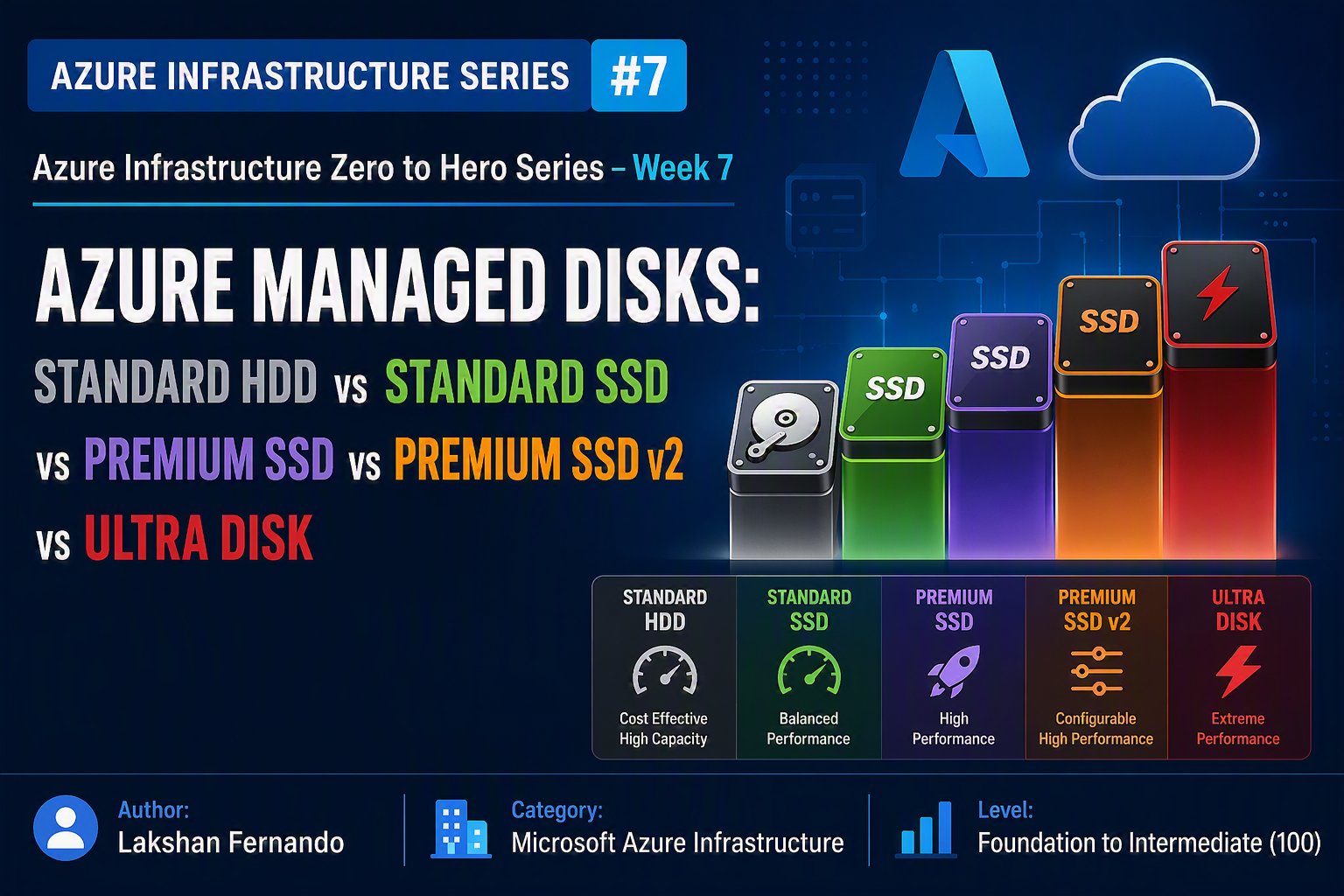
Disk options: Standard HDD
Low cost.
Suitable for:
- Development
- Testing
Step 5: Configure Networking
Azure creates:
Virtual Network
|
Subnet
|
NIC
|
Private IP
Network Security Group (NSG)
NSG controls inbound and outbound traffic.
Example:
Allow Remote Desktop:
Port:
3389
Protocol:
TCP
Source:
Corporate IP Range
Security recommendation:
Avoid:
Internet → RDP 3389
Instead:
Internet
|
Azure Bastion
|
Azure VM
Step 6: Management Options
Azure provides built-in management features.
Enable:
Boot Diagnostics
Used for:
- Startup issues
- Blue screens
- Boot failures
Azure Monitor
Collect:
- CPU usage
- Memory
- Disk performance
- Network metrics
Backup
Enable:
Recovery Services Vault
Backup Policy:
Daily
Step 7: Review and Create
Azure validates:
- Configuration
- Quota availability
- VM SKU availability
Click:
Create
Deployment usually completes within a few minutes.

Connecting to Windows Server VM
Using Remote Desktop (RDP)
Download RDP file:
Azure Portal -VM-Connect-RDP
Connect using:
Username:
Post Deployment Configuration
A newly deployed Windows VM requires additional configuration.
1. Update Windows Server
Run:
Windows Update
Install:
- Security updates
- Cumulative updates
- Drivers
2. Configure Time Synchronization
Azure VMs use Azure Time Service.
Check:
w32tm /query /status
3. Configure Windows Firewall
Review:
- Domain profile
- Private profile
- Public profile
Example:
Enable required ports only.
4. Install Required Roles
Examples:
Active Directory:
Install-WindowsFeature AD-Domain-Services
File Server:
Install-WindowsFeature FS-FileServer
IIS:
Install-WindowsFeature Web-Server
Azure VM Agent
Every Azure VM runs:
Azure VM Agent
It provides:
- Extension support
- Password reset
- Run Command
- Monitoring integration
- Backup communication
Check status:
Services - Azure VM Agent
Azure VM Extensions
Extensions allow post-deployment automation.
Examples:
Microsoft Antimalware Extension
Installs security protection.
Custom Script Extension
Runs:
- PowerShell scripts
- Configuration tasks
Example:
Install IIS automatically
Monitoring Agent
Collects:
- Performance counters
- Logs

Windows Server VM Security Best Practices
1. Avoid Public IP Addresses
Recommended:
Administrator
|
Azure Bastion
|
VM
2. Enable Just-In-Time Access
Microsoft Defender for Cloud provides:
- Temporary RDP access
- Port protection
3. Use Managed Identity
Avoid storing:
- Passwords
- Secrets
Use:
System Assigned Managed Identity
4. Enable Disk Encryption
Options:
- Azure Disk Encryption
- Server-side encryption
5. Apply NSG Rules
Example:
Bad:
Allow Any
Any Port
Internet
Good:
Allow RDP
Corporate IP Only
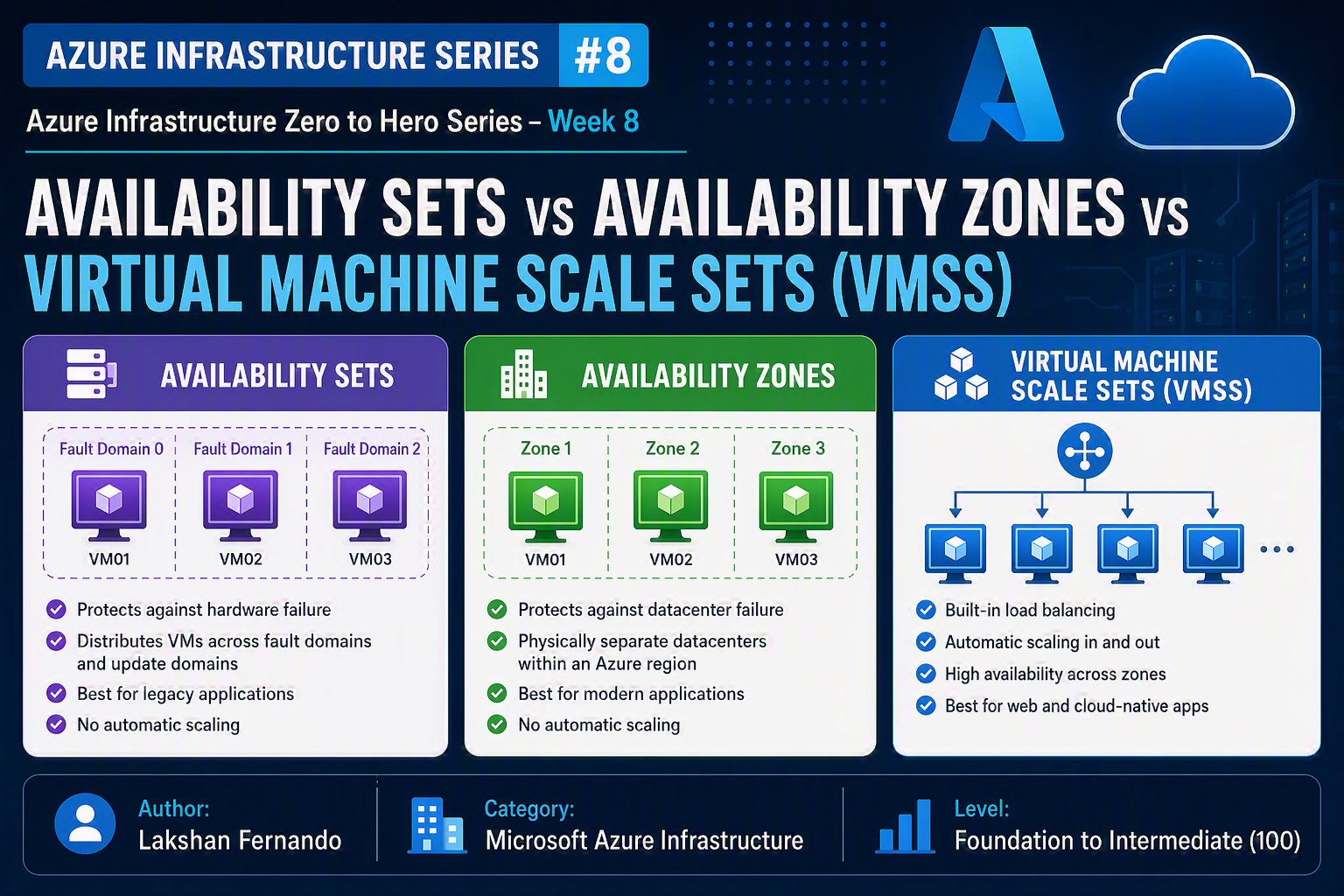
High Availability Design
For production workloads:
Availability Zones
Protect against datacenter failures.
Availability Sets
Protect against:
- Rack failures
- Hardware maintenance
Azure VM Backup Strategy
Recommended:
Production Servers
Daily Backup
Retention:
30 Days
Critical workloads:
Daily Backup
Weekly Backup
Monthly Backup
Monitoring Azure Windows VMs
Important metrics:
CPU
Percentage CPU
Memory
Using Azure Monitor Agent.
Disk
Monitor:
- Disk latency
- IOPS
- Throughput
Network
Monitor:
- Incoming traffic
- Outgoing traffic
Common Deployment Issues
VM Size Not Available
Cause:
Region capacity issue.
Solution:
- Select another SKU
- Select another region
RDP Connection Failed
Check:
- NSG rules
- Public IP
- Windows Firewall
- VM status
Slow Disk Performance
Cause:
Incorrect disk type.
Example:
Using Standard HDD for SQL Server.
Solution:
Upgrade to:
- Premium SSD
- Premium SSD v2
- Ultra Disk
Infrastructure as Code Deployment
Enterprise environments should avoid manual deployments.
Azure supports:
- ARM Templates
- Bicep
- Terraform
Real Enterprise Deployment Example
A production application environment:

Conclusion
Deploying Windows Server Virtual Machines in Azure is the foundation of many enterprise cloud environments. While creating a VM is simple, designing a secure, reliable, and scalable deployment requires proper planning around compute sizing, networking, storage, security, availability, and monitoring.
A production-ready Azure Windows Server VM should include:
Correct VM sizing
Secure networking design
Managed disks
Backup strategy
Monitoring integration
Identity and access controls
Governance compliance
Understanding VM deployment fundamentals prepares you for advanced Azure administration topics such as VM extensions, Azure Bastion, Serial Console troubleshooting, Boot Diagnostics, and automated VM management.

No comments yet. Be the first to share your thoughts!